
Select the File/ New analysis/ Import CSV file with header...
Change the open file dialog directory to that which contains the data file if necessary
Double-click on the data file name (tbfchrt.csv)
Select a module (AMFIT for this example)
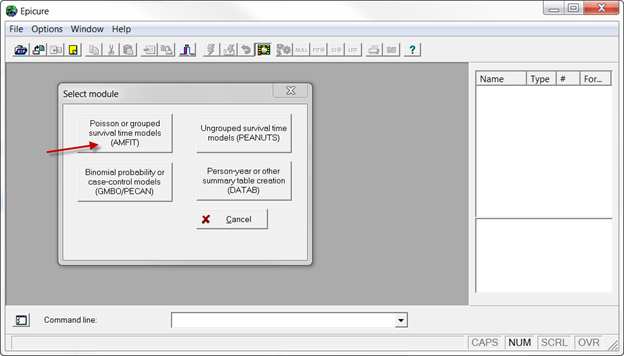
You will see the same set of options for input data as was seen in the example with BSF file.
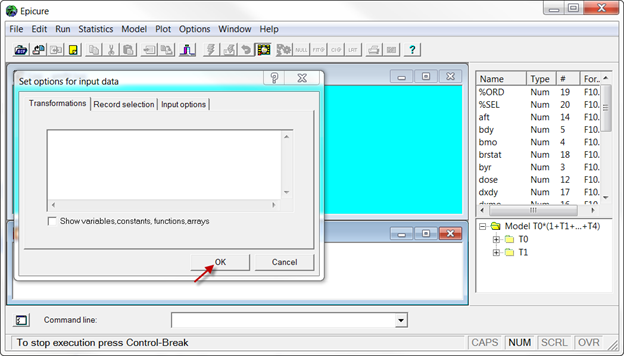
For this example, we ignore transformations and data input options in the dialog box. Click OK in the input data options dialog, at this point the data file is read into EPICURE.
As in the previous example, all executed commands appear in the script window.
The log window shows that 1761 records from the data were read and one record was rejected. The “rejected’ record is the one containing variable names. In the upper right panel you see variable names, and in the lower right panel – the structure of the default model.
